expr:class='"loading" + data:blog.mobileClass'>
Showing posts with label Technology Tip. Show all posts

Tuesday, August 11, 2015

Tried It Tuesday {No Reply Blogger and Spam Comments}

Hi everyone! It's Time for Tried It Tuesday!
What have you tried at school or home?
If you've never linked up with Tried It Tuesday, just link up any idea school or home related and what worked or didn't work. Grab the button below. Simple!
My Tried It:
No Reply Blogger and Spam Comments
When I first started blogging, I had no idea what that a "no reply blogger" existed.
What is a "No Reply Blogger"?
A "No Reply Blogger" means that when you leave a comment on someone's blog and the comment goes to their email, the person who receives the comment cannot reply to you through email. Your email is hidden. Most of us would agree that it is nice to reply to comments through email rather than reply back on the blog. Who remembers to go back to every post they comment on and see if they blog owner replies there? Not me!
In the email, no reply bloggers look like this and in Gmail are found under the "Social" tab.

See the "<noreply-commnet@blogger.com> next to the sender's name? That means you can't reply to this email. 
Here are wonderful directions that I always use to help fellow bloggers fix this problem like I once did. Also, even if you have fixed it once doesn't mean it stays fixed. That happened to me too and it had to do with Google plus. Click the image below to see how to fix it even in Google Plus.

This leads me to another problem I have been experiencing. Everyday I have been getting spam comments. See?
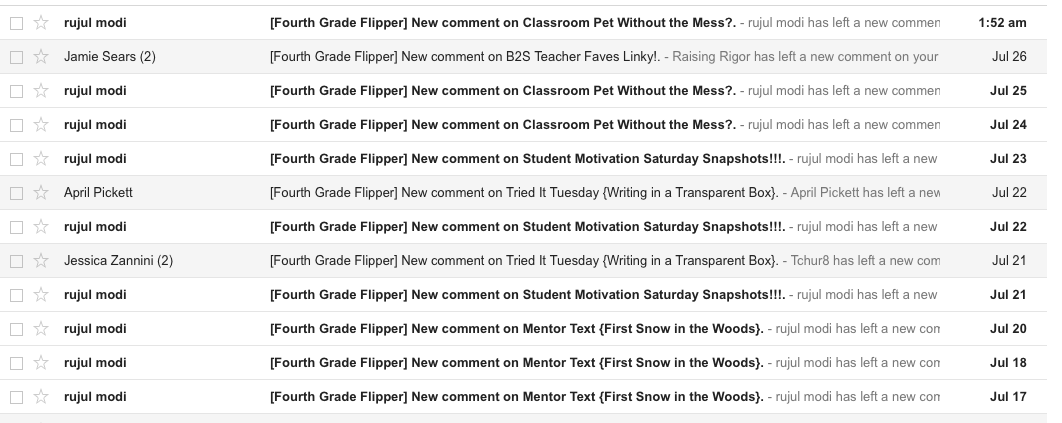
My BBB Diane at Fifth in the Middle suggested this fix and it is working to at least keep the comments off the blog. You can go to settings and under "Posts and Comments" select comment moderation "sometimes". I selected it for posts under 30 days.


Then when I open Blogger, I can see if I have any comments awaiting approval.
I hope this post helps someone else that might be having these problems! :) Have a great week!

Tuesday, August 4, 2015

Tried It Tuesday {Compress PDF's}

Hi everyone! It's Time for Tried It Tuesday!
What have you tried at school or home?
If you've never linked up with Tried It Tuesday, just link up any idea school or home related and what worked or didn't work. Grab the button below. Simple!

My Tried It:
Compress PDF's (Free!)
Since I learned this trick, it has come in super handy! My PDF's always seem to be huge and TpT requires previews to be 5MB or less. I like to make displays in Power Point with pictures from the product and my previews were always so large. I had to limit the pages and pictures to keep it under 5MB. No more! I tried a couple different sites, and smallpdf was the easiest one I found that was successful with my large preview files. It's super easy to use!
This one was compressed from 30.89MB to 1.51MB!
This one was compressed from 11.95MB to 1007.69KB! That IS awesome and now my previews are a few pages filled with pictures. Love it! 

Don't forget about the Back to School sale at TpT that ends today! My store is 20% off and with the code BTS15, you can get an additional 8% off!
Also, check out my post from yesterday. There are links to THREE amazing giveaways happening right now! Click here!


Tuesday, July 28, 2015

Tried It Tuesday {Matching Font Color to Clipart in PowerPoint}

Hi everyone! It's Time for Tried It Tuesday!
What have you tried at school or home?
If you've never linked up with Tried It Tuesday, just link up any idea school or home related and what worked or didn't work. Grab the button below. Simple!

My Tried It:
Matching Font Color to Clipart in PowerPoint
You know when you have one of those "aha" moments when you learn a simple trick and CANNOT believe it took you this long to figure it out? That was me last week when I saw this tip on Instagram. For the life of me, I can't remember whose page it was from on my newsfeed but you are a lifesaver! I was working on a PowerPoint document and frustrated as usual trying to get just the right color on my font. I always would go to choose "more colors" and click around on that color wheel for what seemed like forever TRYING to match the color to my clipart!
Most of you probably know this but in case you don't (like me!), here is a simple little trick. I have a Mac and use PowerPoint 2008 for Mac.

I would love to hear any other tips you have about color matching on Macs. I read somewhere about an app under utilities but couldn't find that. There is so much to learn! Have a great week friends!


Tuesday, July 21, 2015

Tried It Tuesday {Writing in a Transparent Box}

Hi everyone! It's Time for Tried It Tuesday!
What have you tried at school or home?
If you've never linked up with Tried It Tuesday, just link up any idea school or home related and what worked or didn't work. Simple! 

My Tried It:
Writing in a Transparent Box
Last week, I blogged about how I am loving how products are using photographs more now in their cover pages and products. I wrote a tutorial about that here.
Here is a picture of one the cover pages I updated on my Fall Nonfiction Themed Text Practice.
A reader asked how I made those boxes transparent so I thought that would be a good topic to cover this week. You see these boxes all over product pages and Pinterest. I love how my friend Joanne at Head Over Heels for Teaching uses them all the time like these two examples.


Here are step by step pictures for you to try this technique! I used Power Point on my Mac.


I hope these steps help if you want to try this technique! I'll be back next week for another Tried It Tuesday. I'm always open to suggestions if there is something you would like to see for another Tried It!


Tuesday, March 4, 2014

Tried It Tuesday {TPT Store Banner}

This week my Tried It comes from another blogger's Tried It just a little over a month ago!
I love learning so many tips, tricks, and ideas in this link up!
I am always inspired to try new things. :)
It's Time for Tried It Tuesday! 
What have you tried recently at school or home?
My Tried It:
Banner for TPT Store
I am excited to share a technology tip for TPT sellers that I first read about in January from my sweet friend Jessica's blog at Literacy Spark here. I am not even sure how long it took me to realize that I could make a banner for my TPT store to dress it up and add a more professional look. Sometimes I am the last to figure things out! Haha!
I started with this free template by Camping Teacher that Jessica suggested.
It is a banner in PowerPoint that is already sized to the specifications on your TPT store page.
 First, I tried placing my header in the banner. That didn't work.
 Then, I played around with different clipart and changed things until I had them to how I think I wanted it. Of course, I changed my mind again later. :)
 When you are done, go to File and "Save as Pictures".
 I saved my file in the JPEG format.
 I changed the design again and this is how it turned out.
 I went to my dashboard in TPT and chose "Dress Up Your Store" just as Jessica stated in her clear directions.
 Then, I selected my JPEG file and linked it to a free product from my store. You cannot link to your blog or FB page outside of TPT.
Once I clicked "Save" my store was updated immediately. Jessica said her banner had to wait for approval, so this might be something that TPT changed.

 Voila! Here the banner appears in my store.

 So, just in case you were wondering if it is easy to make a banner for your store, I am telling you that it is! Check it off your "to do" list today! It will probably take you even less time than it took me because I just kept playing with the design for too long. :)

Before you check out other link ups, here are a few giveaways to check out:
My friend, Diane, at Fifth in the Middle is hosting a March Madness giveaway (no basketball knowledge necessary to win!). Stop by to enter the contest and earn chances to win!
 Another bloggy buddy, Nick, at Sweet Rhyme & Pure Reason is celebrating his One Year Blogiversary! Check back at his blog beginning March 8th for a giveaway with many prizes!


Tuesday, November 12, 2013

Tried It Tuesday {Embed Links in a PDF on a Mac}

Happy Tuesday that feels like a Monday!  It's time for another week of Tried It Tuesday. :)
I love having an extra long weekend and spent Veteran's Day catching up on so many things.  The day just flew by!  Speaking of Veteran's Day, I love this quote by Abraham Lincoln:
My Tried It:
Embed Links in a PDF on a Mac
I am linking this post to the amazing blogger's TPT tips post by Erica Bohrer here in the hopes that it will reach more people and be even more helpful!
One task I was finishing up yesterday was a freebie nonfiction text activity for the holidays.  I am submitting it for consideration to be included in this year's TpT holiday ebook.  Here is the link to the 3-6 ebook from 2012.  In order to be considered for inclusion in the holiday ebook, my PDF document needed to have embedded links.  If you try searching for a tutorial on this topic, you will see a host of forums and help pleas from Mac users trying to embed links on a PDF.  I thought I would walk you through the steps I took after several hours of reading and trying in case you are looking to do this anytime soon! :)

First, I followed some advice to upload my PDF file to pdfescape.com.


This may work for you, if your documents are less than 10MB, but, unfortunately, mine are not.  I wasn't ready to commit to a premium membership, so my search continued.

Next, I found a tip to open my PDF in Preview instead of Adobe Reader.  

My version of Preview was 6.0 and I needed the older version.  Here is the link to the forum thread in the picture below.  I used the link in the forum to download Preview 5.5.2 provided by user "Bizdata" on August 11, 2012.


I was successful in the end in that I had a PDF with embedded links.  The one problem I still have is I cannot fully "secure" the PDF with Preview and make the links still work.  My bloggy friend, the super talented technology pro, Erin, from I'm Lovin Lit helped me answer this problem.  Basically, I cannot embed links AND have the PDF secure using only PowerPoint and Preview.  It is not possible to have both.  The solution is to purchase Adobe Acrobat Pro or the Adobe Creative Cloud for Educators monthly subscription.  I know what I will be investing in next!
Thanks for reading and I hope this tutorial will save someone hours of research!